
WooCommerce 11.1 quietly added a feature that a lot of store owners are going to misunderstand. It is called WooCommerce order withdrawal, and it puts a request form on your My Account page where a customer can ask to cancel an order within 14 days of placing it.
The confusion starts with the name. WooCommerce order withdrawal does not withdraw anything. It does not cancel the order, it does not change the order status, and it does not send money back. It collects a request and tells you about it. Everything after that is still your decision.
This guide covers what the feature really does, how to switch it on, what your customer sees, and whether you should bother turning it on at all.
What this guide covers
- What WooCommerce order withdrawal actually is
- What WooCommerce order withdrawal does not do
- How to enable WooCommerce order withdrawal in 11.1
- What your customer sees
- What you see when a request arrives
- Should you turn on WooCommerce order withdrawal?
- Build a process before you build a form
- Refunding faster with store credit
- Mistakes to avoid
- Frequently Asked Questions
What WooCommerce order withdrawal actually is
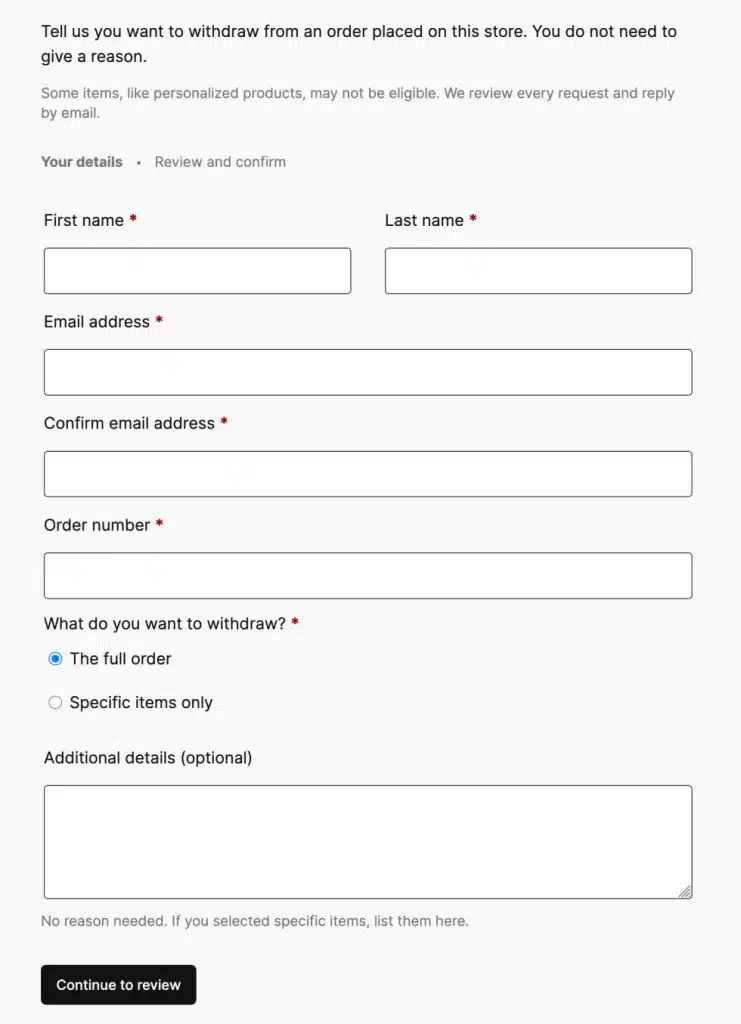
It is a built-in request form, nothing more. WooCommerce adds a page at /my-account/withdraw-order. A customer fills in their order number and billing email, submits the form, and gets a confirmation email. You get an email and a notice in your WooCommerce inbox.
The feature exists because of EU consumer law. Shoppers in the EU have a 14-day right to withdraw from most online purchases without giving a reason. Until now, WooCommerce gave stores no standard way to accept that request, so every shop invented its own contact form or email address.
WooCommerce announced it on 27 August 2026 in the official 11.1 developer post. It is off by default, so nothing changes on your store until you enable it.
What WooCommerce order withdrawal does not do
This is the part worth reading twice, because it is where store owners get caught out.
- It does not change the order status. A processing order stays processing.
- It does not cancel the order or stop fulfilment. If your warehouse picks orders every morning, that order still ships.
- It does not issue a refund. No money moves. Your payment gateway is never touched.
- It does not check whether the customer is inside the 14-day window, or whether the product is even eligible for withdrawal.
Read this before you switch it on: enabling WooCommerce order withdrawal without a human process behind it is worse than not having it. You have created a form that promises action, and nobody is watching it.
How to enable WooCommerce order withdrawal in 11.1
Setup takes about two minutes. You need WooCommerce 11.1 or newer.
- Update WooCommerce to 11.1. Test on a staging site first if your store runs a lot of extensions.
- Go to WooCommerce > Settings > Advanced > Features.
- Turn on the Order Withdrawal option and save.
- Open WooCommerce > Settings > Advanced > Page Setup if you want to change the endpoint from the default
withdraw-order. Translated stores usually should. - Visit
yourstore.com/my-account/withdraw-orderin a private browser window and submit a test request against a real order. - Confirm the notification email actually arrives. If your store has email delivery problems, this feature makes them expensive.
Once it is live, add a link to the withdrawal page from your refund policy page and your order confirmation email. A form nobody can find does not help anyone.
What your customer sees
The customer opens the page, enters their order details, and submits. They get a confirmation screen and an acknowledgement email showing what they sent.
One detail catches stores by surprise: the page works whether or not the customer is logged in. Someone who checked out as a guest can still submit a request. That is correct behaviour under EU law, but it means you cannot assume every request comes from a registered account you can look up.
What you see when a request arrives
You get two notifications: an email, and an inbox notice on your WooCommerce home screen.
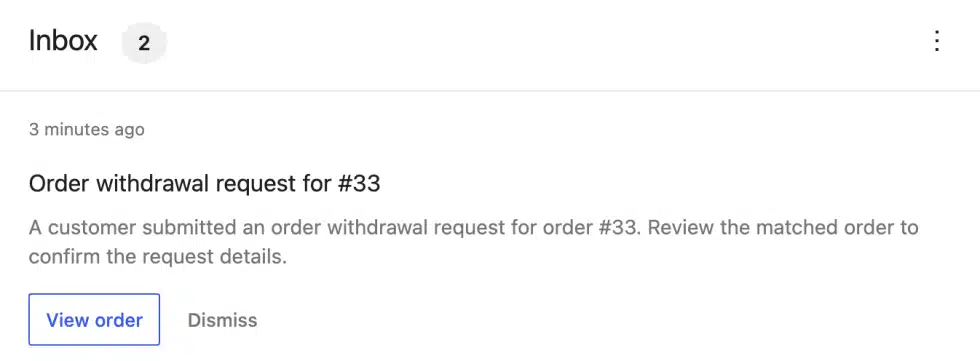
If the order number and billing email match an existing order, WooCommerce links the request to that order automatically and adds an order note. That note is the useful part, because your whole team sees the request in the order history instead of in one person’s inbox.
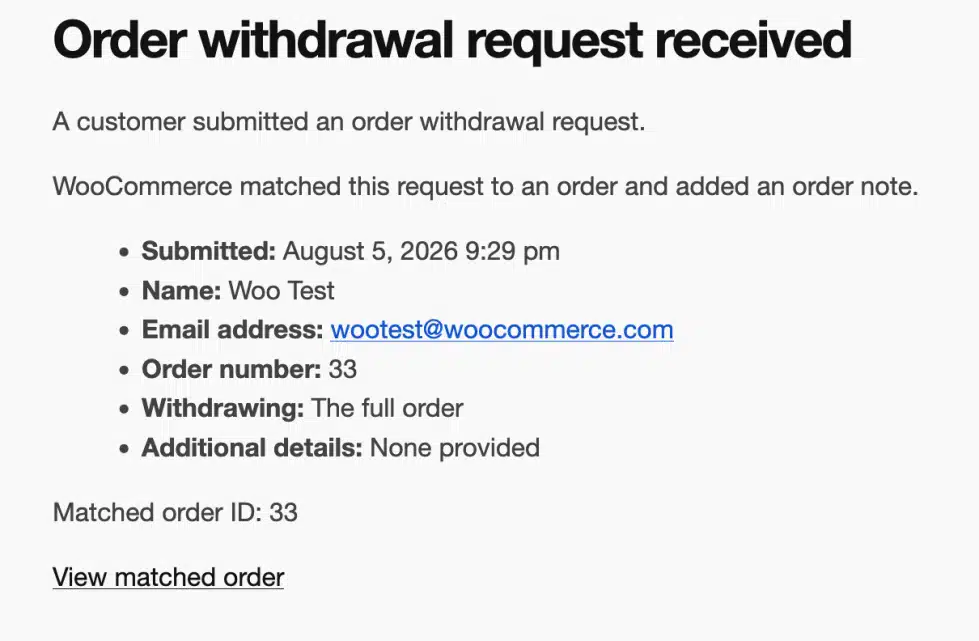
If there is no match, the request is still accepted and still notifies you. Someone has to open it and work out what the customer meant. Expect typos, wrong email addresses, and people quoting the transaction ID from their bank instead of the order number.
Should you turn on WooCommerce order withdrawal?
Honest answer: it depends on where your customers are.
| Your situation | Recommendation |
|---|---|
| You sell to EU customers | Turn it on. You already owe them this right, and a standard form beats an ad-hoc email thread. |
| You sell only inside India, the US, or another non-EU market | Leave it off. It adds an inbox to watch and gives your customers a cancel button your refund policy may not actually offer. |
| You already run a returns plugin with an RMA workflow | Leave it off. Two request channels means requests get missed in whichever one is checked less. |
| You sell digital goods or services | Turn it on, but review the exemptions first. Downloadable content the customer already accessed is often outside the withdrawal right. |
None of this is legal advice. The 14-day right has real exemptions — custom-made goods, sealed hygiene products, digital content already downloaded — and they vary in the detail. Check with someone qualified before you write your policy page.
Build a process before you build a form
Because WooCommerce does none of the deciding, the value of this feature is entirely in the process you put behind it. A simple one works:
- Check the window. Was the request made within 14 days of the order? Note the date in the order note.
- Check eligibility. Is this product actually covered, or does an exemption apply?
- Stop fulfilment if you still can. This is the step that saves you the most money and the one most often forgotten.
- Reply within one working day with either an approval or a clear reason.
- Arrange the return if goods already shipped, then refund once you have them back.
- Refund and record it against the order so your accounts match your gateway.
Refunding faster with store credit
Once you approve a withdrawal, you have to move money. Gateway refunds are slow for the customer, cost you the processing fee on many gateways, and take the revenue out of your store for good.
Store credit is the faster path. With TeraWallet you can credit the customer’s wallet balance instantly, with no gateway fee, and they can spend it at checkout straight away — including as a partial payment on a larger order. Setup is covered in the TeraWallet documentation.
One caveat, and it matters: for a genuine EU withdrawal the customer has the right to be repaid using the same means of payment they used. You can offer store credit as a faster alternative, and many customers take it when there is a small bonus attached. You cannot force it. Make it a choice on your reply, not the only option, or you turn a compliance feature into a complaint.
And store credit does not have to be a dead end. TeraWallet Pro adds wallet withdrawals with an approval queue, so a customer who later changes their mind can request the balance out of the wallet instead of feeling locked in.
Mistakes to avoid
- Assuming it cancels orders. It does not. Your fulfilment process needs a manual stop step.
- Enabling it and never checking the inbox. An ignored request is a chargeback waiting to happen.
- Sending notifications to a personal email. Point them at a shared support address so requests survive holidays.
- Leaving the default endpoint on a translated store. A German store with an English URL slug looks broken.
- Forcing store credit instead of a real refund. Offer it, do not impose it.
- Updating to 11.1 on a live store without staging. This release also changes product save and reorder behaviour, which some extensions depend on.
Frequently Asked Questions
Is WooCommerce order withdrawal enabled by default in 11.1?
No. It is off by default. You enable it under WooCommerce > Settings > Advanced > Features. Nothing on your store changes until you do.
Does a withdrawal request refund the customer automatically?
No. Submitting the form does not refund money, cancel the order, or change the order status. You review each request and decide what to do.
Can guest customers submit a withdrawal request?
Yes. The page works whether or not the shopper is logged in, so guest checkout customers can use it too. Those requests still reach you by email and in your WooCommerce inbox.
Can I change the withdrawal page URL?
Yes. The default endpoint is /my-account/withdraw-order and you can change it under WooCommerce > Settings > Advanced > Page Setup. Translate it if your store is not in English.
Can I refund a withdrawal as store credit instead of cash?
You can offer it, and a wallet plugin like TeraWallet makes it instant and fee-free. But under the EU withdrawal right the customer can insist on a refund to their original payment method, so present store credit as a choice rather than your only answer.
Do I need this if I only sell in India?
No. The feature exists for the EU 14-day withdrawal right. If you have no EU customers, leaving it off keeps one less inbox to monitor.